The most important screen in any habit app isn't inside the app. It's your home screen, the thing you glance at a hundred times a day without thinking about it. A habit tracker home screen widget puts your habits on that screen, which sounds like a minor convenience and is actually the whole difference between a tracker you use and one you've forgotten by Thursday.
Here's why the widget matters more than almost any feature buried inside the app, why it's one of the first things to look for in a habit tracker for iPhone, and how to set one up so it does its job.
The widget is the whole game
The failure mode of every habit tracker is identical. You did the thing. Logging it means finding your phone, unlocking it, hunting for the app, waiting a beat for it to load, finding the right habit, and tapping. Six steps to record one. Do that at 11pm when you're tired and you'll skip the logging, and an unlogged day looks exactly like a skipped one.
There's a deeper reason this matters. Habits run on cues: a behaviour fires in response to something in your environment, not a conscious decision. Decades of research on the psychology of habit keep landing on the same point, that context triggers the behaviour. A tracker you have to remember to open is fighting its own premise. A widget fixes that: the cue (seeing your habits) and the action (one tap) both live on the screen you already check by reflex.
Home screen, lock screen, or today view
iOS gives you three places to put a habit widget, and they do different jobs.
| widget spot | best for | why |
|---|---|---|
| home screen | your daily checklist plus a heatmap | one tap to complete, trend visible at a glance |
| lock screen | one keystone habit or a streak count | you see it before you even unlock |
| today view | the full habit list, swipe right | the deep view without opening the app |
The home screen widget is the workhorse, because it sits where your thumb already goes. The lock screen is for the one habit you refuse to miss, the keystone the others hang off. Most people only need the first one, set up well.
What a good habit widget shows
Not every widget earns its place. The ones that actually change behaviour share a few traits:
- Interactive checkboxes. You tick the habit from the widget itself, without the app ever opening. If tapping just launches the app, the widget saved you nothing.
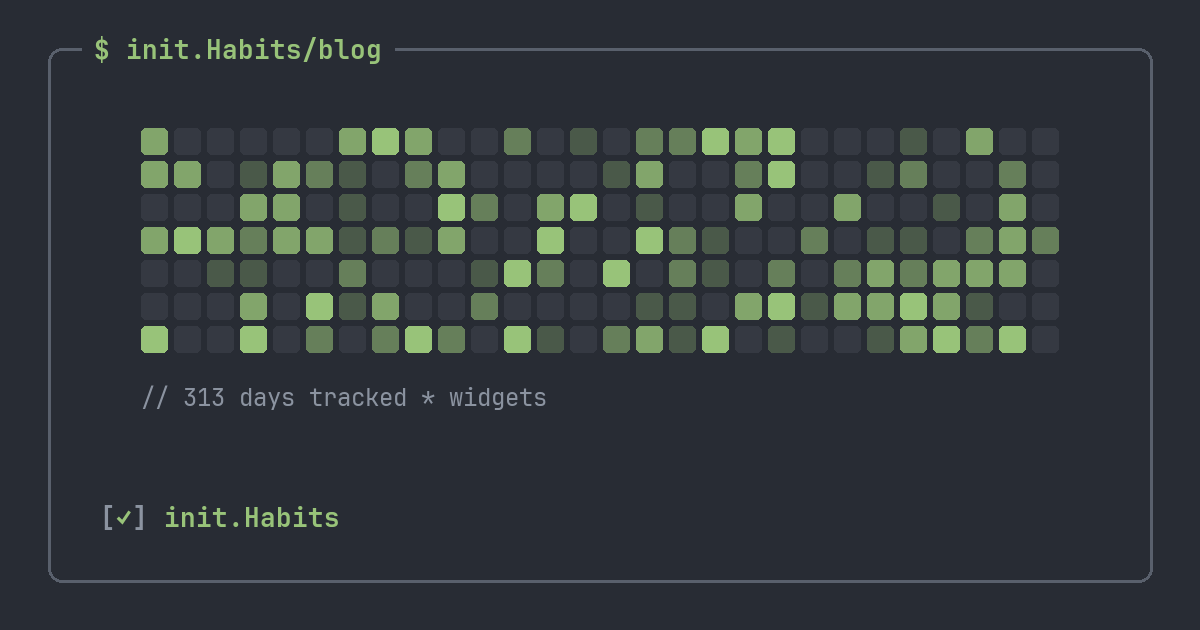
- The contribution grid. A GitHub-style heatmap in widget form means you see your trend twenty times a day. Mild, persistent pressure from your past self. You can build the same grid from your own habits in the browser to see how it reads before you commit to a widget.
- A streak or count, so the number you're protecting is always in view.
- Sizes that fit your layout, small for a corner, medium for a real checklist, so it earns its space instead of crowding the screen.
How to set up a habit tracker home screen widget
On iPhone the flow is the same for any tracker that ships a widget:
- Long-press an empty area of the home screen until the icons start to jiggle.
- Tap the + in the top corner, then search for your habit tracker.
- Pick a size and the widget type, a checklist for logging, a heatmap for the trend.
- Drop it on your first home screen page, next to the apps you open most, so it's in your eyeline.
- Optionally add a lock screen version: long-press the lock screen, tap Customise, and add your keystone habit there too.
Put it where your thumb already goes
A widget only works if it's in your path. Buried on the third home screen page, tucked behind a folder, or left down in the today view, it becomes just another thing you have to remember to check, which defeats the entire point. Put it on your first page, near the apps you open most, so a habit is something you pass on the way to everything else. For a morning routine, that single placement is often the difference between doing it and forgetting.
One well-placed widget also beats a wall of them. The goal is a glance that takes half a second, not a dashboard you have to read. Pick the checklist or the heatmap, give it a prominent spot, and resist the urge to tile six sizes of the same thing across the screen.
Why a widget beats notifications
The other way apps try to solve "remember to log it" is notifications, and they're a worse answer. Ten pings a day train exactly one habit: swiping the pings away. A notification interrupts you on the app's schedule; a widget waits quietly on yours. One is a nag, the other is a cue you chose and placed yourself. Reminders aren't useless, though; used sparingly they're the right tool for a habit with no natural cue, which is the whole point of setting up reminders that help instead of nag.
This also kills the most common cause of broken streaks, the phantom miss, a day you did the habit but never logged it. When the checkbox sits on your home screen, logging costs about a second, and the phantom misses that quietly snap streaks mostly disappear. If you're still deciding what to put on that widget, the list of habits worth tracking is a good place to start, and you can preview the themes the widget will inherit on the homepage.
FAQ
Can I put a habit tracker on my iPhone home screen?
Yes. Any tracker that ships a widget can live on the home screen. The ones worth using have interactive widgets, so you complete a habit from the widget itself. init.Habits has an interactive checklist widget for exactly this, plus a heatmap widget that shows your year at a glance without opening the app.
What's the difference between a home screen and a lock screen habit widget?
The home screen widget is bigger and better for your full daily checklist plus the heatmap. The lock screen widget is small and glanceable, ideal for a single keystone habit or your current streak, visible before you unlock. Using both covers "log everything" and "never miss the one that matters."
Do habit widgets drain the battery?
No, not meaningfully. iOS refreshes widgets on a system-controlled schedule rather than running them constantly, so a habit widget's battery cost is negligible compared with actually using the app.
Can I see my habit streak on the lock screen?
Yes, if your tracker offers lock screen widgets. init.Habits provides lock-screen widgets that show a habit's status or streak, so the number you're protecting is the first thing you see when you pick up your phone.